
12
December
Your Booking Page Features
December 12, 2025
Learn how to customize your booking page content, tips for customers, and promotional sections to maximize conversions.
Customizing Your Booking Page
Your booking page is where customers come to schedule sessions with you. Customizing it effectively can significantly increase your booking rate.
Accessing the Page Editor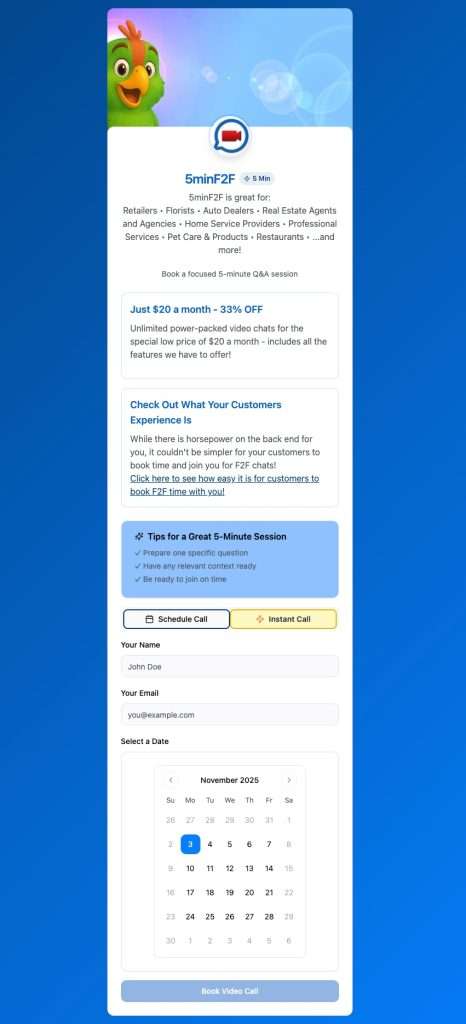
- Go to Dashboard → Booking Page
- Click “Edit Page Content”
- Use the rich text editor to customize your content
- Preview changes before publishing
- Click “Publish” to make changes live
Page Sections
Session Description
This is the main content area where you explain:
- What happens during a session
- How long sessions typically last
- What customers should prepare
- What outcomes they can expect
- Any requirements or prerequisites
Customer Tips
Add helpful guidance for customers such as:
- Best times to book
- What information to have ready
- Technical requirements for video calls
- Cancellation and rescheduling policies
- How to prepare for the session
Promotional Sections
Add promotional content blocks featuring:
- Special offers or packages
- Testimonials from happy customers
- Your credentials and achievements
- Popular services or session types
- Frequently asked questions
Rich Text Editor Features
The editor supports:
- Text Formatting – Bold, italic, underline, headings
- Lists – Bullet points and numbered lists
- Links – Link to external resources
- Images – Embed photos and graphics
- Videos – Embed YouTube or other videos
- Tables – Create pricing tables or comparison charts
- Colors – Highlight important text
Content Best Practices
- Be Clear and Concise – Respect your visitors’ time
- Use Scannable Format – Break text into short paragraphs and use headings
- Include Social Proof – Add testimonials or case studies
- Create Urgency – Highlight limited availability or special offers
- Add Visuals – Use images to break up text and illustrate points
- Mobile-Friendly – Keep in mind many customers will view on mobile
Preview and Publish
Always preview your changes before publishing:
- Click “Preview” to see how customers will view your page
- Check on both desktop and mobile views
- Test all links and ensure images load
- When satisfied, click “Publish Changes”
You can return to edit mode anytime to make updates without affecting your live page until you publish again.