
12
December
Embedding Your Booking Widget on Your Website
December 12, 2025
Complete guide to generating embed codes, customizing your booking widget, and installing it on your website.
Embedding Your Booking Widget on Your Website
Integrate 5minf2f.com directly into your existing website with our customizable booking widget. Let visitors book sessions without leaving your site.
Why Use the Embed Widget?
- Seamless Experience – Visitors stay on your website
- Increased Conversions – Reduce friction in booking process
- Professional Appearance – Matches your website design
- Easy Installation – Simple copy-paste implementation
- Mobile Responsive – Works on all devices
- No Coding Required – User-friendly setup
Accessing the Embed Generator
- Log into your dashboard
- Navigate to “Embed Widget” in the sidebar
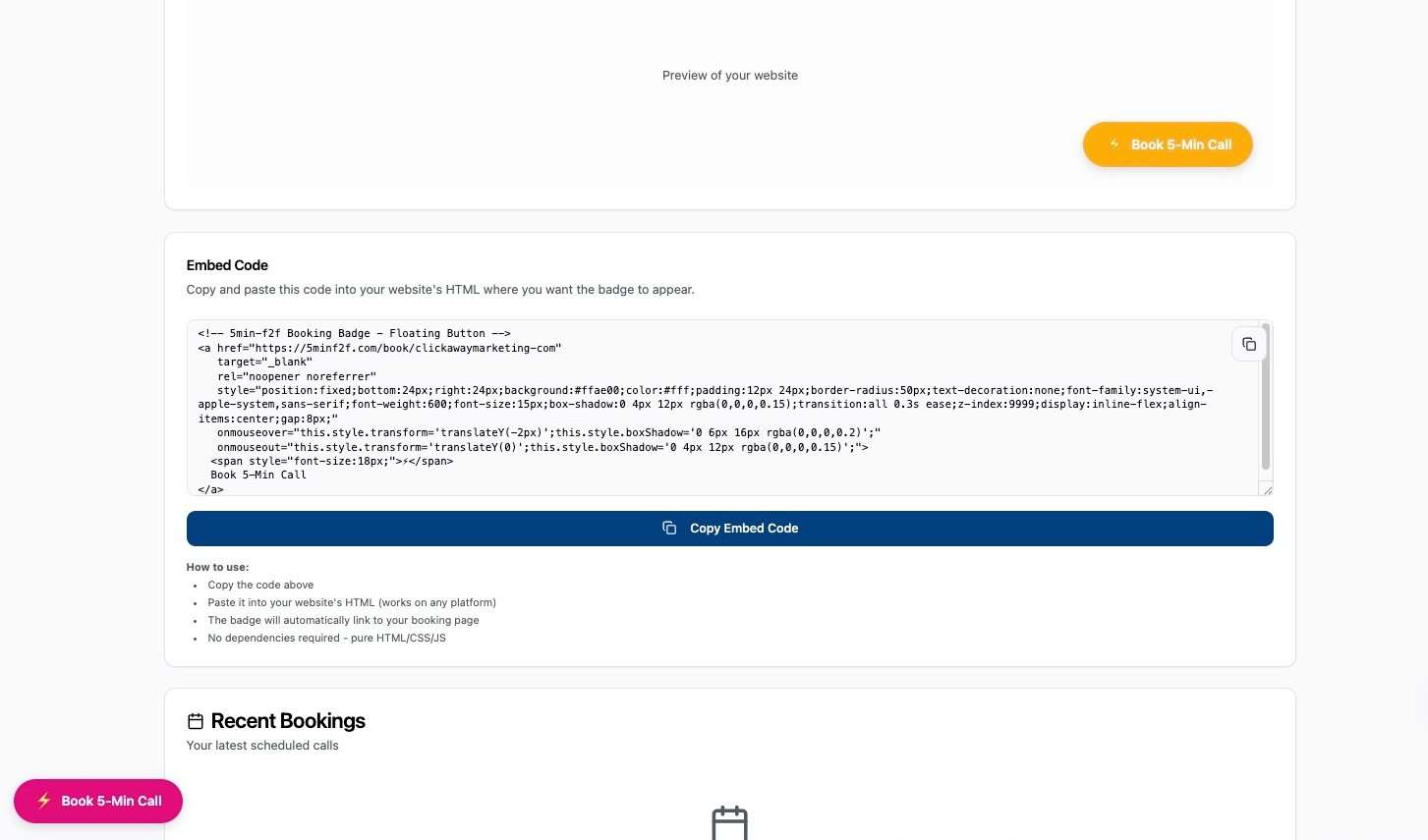
- View the embed code generator
Widget Style Options
| Floating Button | Inline Button | Text Link |
|---|---|---|
| A fixed button that appears in the corner of your website: | A button embedded directly in your page content: | A simple hyperlink to your booking page: |
| Position - Bottom right or bottom left | Placement - Exactly where you insert the code | Subtle Integration - Blends with existing content |
| Visibility - Always visible as users scroll | Customizable Text - Change button label | Flexible Placement - In paragraphs, menus, footers |
| Click Action - Opens booking page in modal or new tab | Styling - Inherits some styling from your site | Customizable Text - Any link text you choose |
| Best For - Websites where you want booking available on every page | Best For - Specific pages like "Book a Consultation" or "Contact" | Best For - Navigation menus, footer links, inline content |
Customizing Your Widget
| Button Text | Colors | Position (Floating Button) |
|---|---|---|
| Customize what your button says: | Match your brand: | Choose corner placement: |
| Book a Session | Button Color - Primary brand color | Bottom right (most common) |
| Schedule Now | Text Color - Ensure readability | Bottom left |
| Get Started | Hover State - Interaction feedback | Offset from edges for optimal visibility |
| Book Your Consultation | ||
| Any text that fits your brand |
Generating the Embed Code
- Select your preferred widget style
- Customize appearance and text
- Preview the widget
- Click “Generate Code”
- Copy the provided code snippet
Installing on Your Website
General Instructions
- Copy your embed code from the generator
- Access your website’s HTML editor
- Paste the code where you want the widget to appear
- Save and publish your website changes
- Test the widget to ensure it works
Common Website Platforms
| WordPress: | Squarespace: | Wix: |
| Go to Appearance → Widgets or use Gutenberg editor | Edit the page where you want the widget | Click Add (+) on the left panel |
| Add Custom HTML block | Add a Code Block | Select Embed → Custom Embeds → Embed a Widget |
| Paste embed code | Paste embed code | Paste your code |
| Save changes | Save and publish | Save |
| Shopify: | Custom HTML Sites: | |
| Online Store → Themes → Edit Code | Paste directly into your HTML file | |
| Find appropriate template file | Place just before closing tag for floating buttons | |
| Paste embed code in desired location | Place inline where you want inline buttons/links | |
| Save | ||
Testing Your Widget
After installation:
- Visit your website
- Verify the widget appears correctly
- Click the widget/button
- Ensure booking page opens properly
- Test on mobile devices
- Check different browsers