
12
December
Customizing Your Booking Page Design
December 12, 2025
Personalize your booking page with custom colors, branding, and promotional sections to match your business identity.
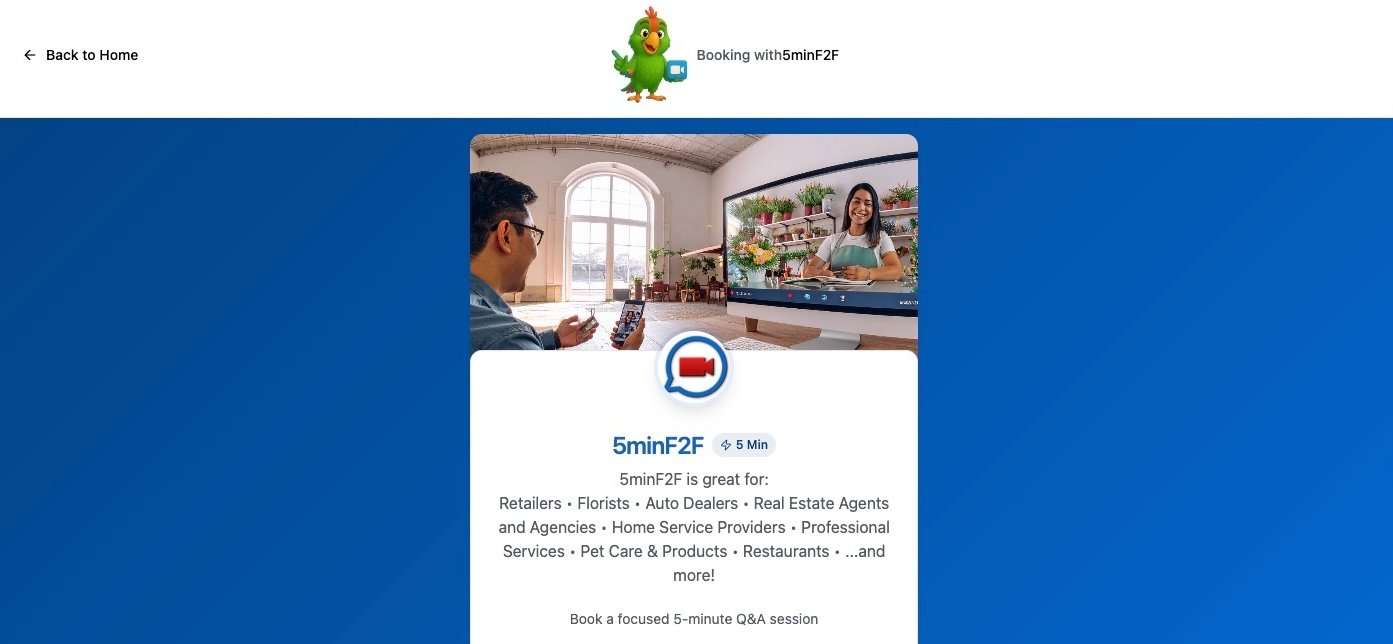
Your Booking Page Is Your Digital Storefront
Your booking page is often the first impression customers have of your business. Customizing it properly can significantly increase your booking conversion rate.
Accessing the Page Editor
- Log in to your dashboard
- Navigate to Page Editor from the main menu
- You’ll see a live preview of your page alongside editing tools
Basic Customization
| Brand Colors | Business Information | Hero Section |
|---|---|---|
| Set your primary brand color to match your business identity: | Business Name: Your official business name | The hero section is the first thing visitors see: |
| In the Page Editor, find "Primary Color" | Display Name: How you want to appear to customers | Upload a professional hero image |
| Click the color picker | Bio: A compelling description of your services | Keep it high-quality (minimum 1920x1080px) |
| Choose your brand color | Logo: Upload your logo for professional branding | Choose an image that represents your service |
| Changes apply instantly to buttons, links, and accents | Ensure text remains readable over the image |
Promotional Sections
Add promotional sections to highlight special offers, showcase testimonials, or explain your services:
- In the Page Editor, scroll to “Promotional Sections”
- Click “Add Section”
- Choose from templates: Feature, Testimonial, or Custom HTML
- Customize the content and styling
- Reorder sections by dragging
- Preview changes before publishing
Advanced Customization
Custom CSS (Advanced)
For power users, inject custom CSS to further personalize your page:
- Navigate to Settings → Advanced
- Paste your CSS in the “Custom Styles” field
- Use browser dev tools to identify class names
- Test thoroughly before publishing
Publishing Your Changes
- Make your desired changes in the editor
- Click “Preview” to see how it looks
- When satisfied, click “Publish”
- Your live page updates immediately
Design Best Practices
- Mobile-First: Most bookings happen on mobile—test your page on phones
- Clear CTA: Make your booking button prominent and easy to find
- Professional Photos: Invest in quality images that represent your brand
- Concise Copy: Keep text brief and focused on benefits
- Social Proof: Include testimonials or trust badges if available