

12
December
Understanding Your Dashboard
December 12, 2025
Navigate your dashboard efficiently with this complete guide to stats, bookings, calendar views, and quick actions.
Understanding Your 5minF2F Dashboard
Your dashboard is mission control for managing your booking business. This guide will help you navigate and utilize all its features effectively.
| Dashboard Overview | Mobile Dashboard |
|---|---|
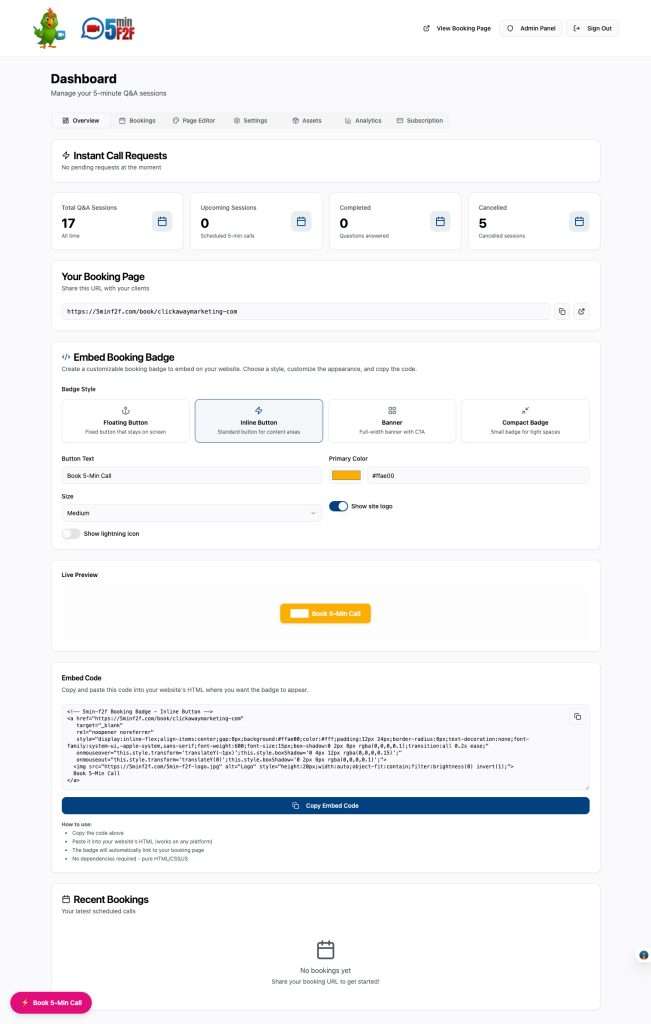
| When you log in, you’ll see your main dashboard with several key sections: | The dashboard is fully responsive: |
| Statistics cards at the top | – Access from any device |
| Quick link to your Booking Page URL to copy/paste/share | – Touch-friendly interface |
| Embed widget customized and code generator | – All features available on mobile |
| Recent Bookings list | – Optimized for on-the-go management |
| Statistics Cards | |
|---|---|
| The top of your dashboard displays real-time statistics: | Total Bookings |
| Pending Bookings | All-time booking count |
| Shows upcoming scheduled sessions | Includes pending, completed, and cancelled |
| Indicates bookings awaiting completion | Shows overall business activity |
| Click to filter bookings by pending status | This Month |
| Completed Sessions | Current month’s booking count |
| Total number of finished sessions | Helps track monthly performance |
| Tracks your session history | Resets on the first of each month |
| Useful for measuring productivity | Recent Bookings |
| View your most recent bookings at a glance: | |
| – Customer name | |
| – Scheduled date and time | |
| – Booking status | |
| – Quick action buttons |
Embed Widget
- Generate embed codes
- Customize badge appearance
- Integration instructions
| Bookings Tab | |
|---|---|
| Customize your booking page content | 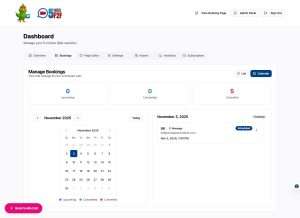 |
| Preview before publishing | |
| Manage promotional sections | |
| Calendar vs. List View | |
| On the right side panel you will find a “Call details” panel that lists the details of each day’s booked chats. When you click on a date in the left hand calendar, that day’s schedule appears in the right column, where you can access “Quick Actions” by clicking the buttons in the upper right corner of each Call Detail box |
| Calendar View | List View |
|---|---|
| Visual representation of bookings: | Detailed table of all bookings: |
| – Month, week, or day views | – Sortable by date, customer, status |
| – Color-coded by status | – Search functionality |
| – Drag-and-drop functionality | – Filter by status or date range |
| – Easy to spot availability gaps | – Bulk actions available |
| IMPORTANT: Schedule Details & Notifications | |
| Stay updated with real-time notifications: | 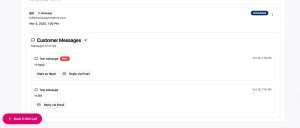 Screenshot |
| New booking alerts | |
| Customer messages | |
| Cancellation notifications | |
| System updates | |
| Check the notification bell icon in the top right corner. |
Page Editor Tab |
We have a comprehensive page walking you through every step of managing and customizing your Booking Page. |
| Settings Tab | |
|---|---|
| Booking rules: | 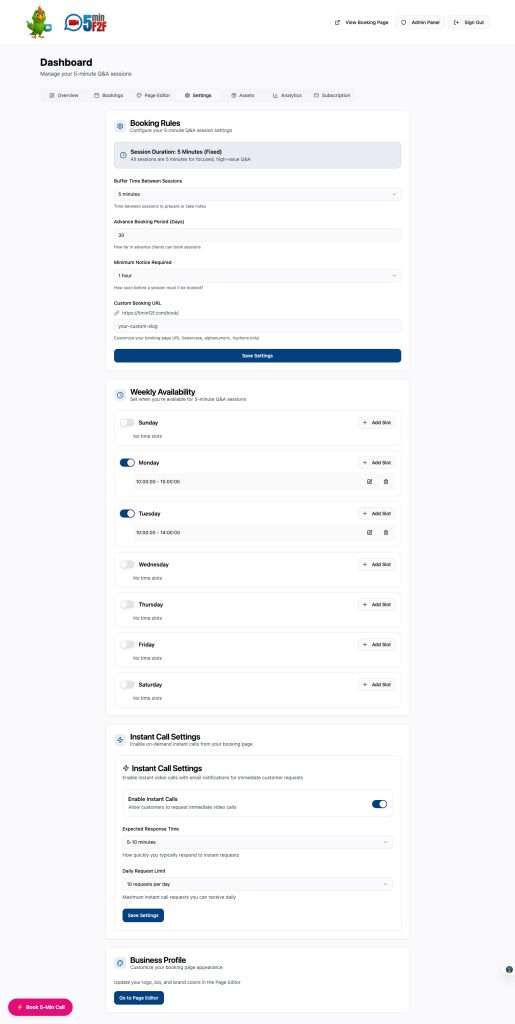 |
| Buffer time: how much time do you want to keep between calls if people are filling up your calendar. If you need time for notes, to pivot focus, extend your buffer time. | |
| Advanced Booking Period: how many days into the future do you want people to be able to book time with you? | |
| Minimum Notice Required: do you need time to make yourself available after receiving an F2F chat request? If you are good answering pretty quickly, keep it an hour…but if you need more time between a request and working it into your schedule, adjust that to give yourself as much time as you need | |
| Availability: | |
| Set the days and hours you are available for 5minF2F video chatting – you can add multiple time blocks on any given day, so if you would like to be available from 9:00am until 11:30am on Tuesday, then again from 3:30 until 6:00 on Tuesdays as well, you have that flexibility. | |
| Instant call settings: | |
| You can enable “Instant” calls – which means when a customer chooses this option, you will both be notified by email with an active link to your F2F chat room immediately. Note you can cap the number of Instant Call requests available each day, and set your “Expected Response Time” so customers know what to expect if they request an Instant Chat. |
| Assets Tab | |
|---|---|
| Browse promotional materials created and supplied by 5minF2F – includes assets for Google Business Profile Posts, social media sharing, suggested hashtags, suggested messages, downloadable images to help you promote your F2F advocacy and availability across your online footprint. | 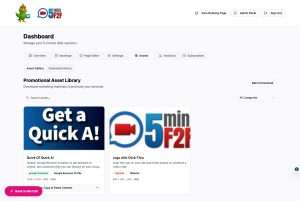 |
| Download marketing assets | |
| View download history | |
| Analytics Tab | |
| Quick insight cards give you an overview of your activity, sortable by timeframe by clicking the drop-down in the upper right of the tab. By default, you are looking at 30 day metrics | 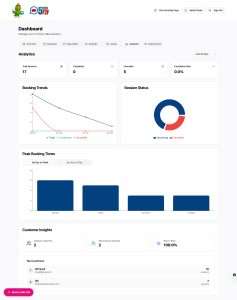 |
| Booking trends and patterns | |
| Peak times analysis | |
| Customer insights | |
Subscription Tab
- Current plan details
- Billing management
- Upgrade/downgrade options