
12
December
Managing Your Availability Schedule
December 12, 2025
Set up and manage your weekly availability schedule, buffer times, and booking rules to control when customers can book sessions.
Managing Your Availability Schedule
Your availability schedule determines when customers can book sessions with you. Setting it up correctly ensures you only receive bookings during times that work for your schedule.
Accessing Availability Settings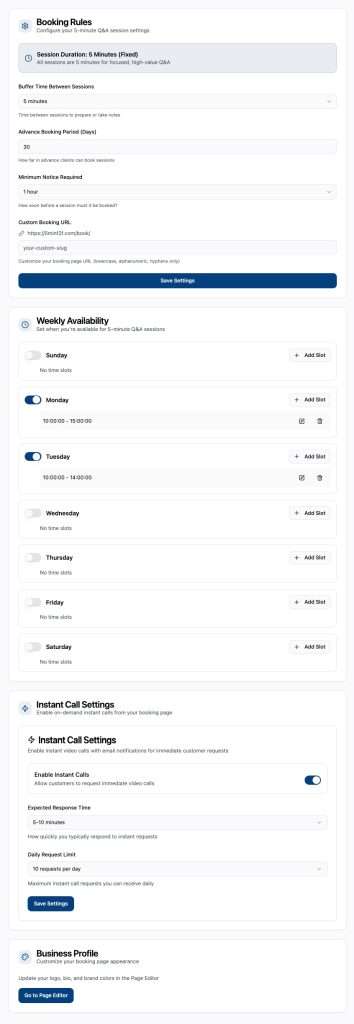
- Navigate to Dashboard → Settings → Availability
- View your current weekly schedule
- Add, edit, or remove availability slots
- Save changes to update your booking calendar
Setting Weekly Availability
Adding Time Slots
For each day of the week:
- Click “Add Slot” for the desired day
- Set the start time (e.g., 9:00 AM)
- Set the end time (e.g., 5:00 PM)
- Click “Save”
You can add multiple slots per day. For example:
- Morning: 9:00 AM – 12:00 PM
- Afternoon: 2:00 PM – 5:00 PM
Removing Time Slots
To delete a time slot:
- Find the slot in your schedule
- Click the delete/trash icon
- Confirm deletion
- Booking Rules
Session Duration
Set the default length of booking sessions:
- 15 minutes – Quick consultations
- 30 minutes – Standard sessions (recommended)
- 45 minutes – Extended discussions
- 60 minutes – In-depth consultations
Advance Notice
Set minimum advance notice required for bookings:
- 15 minutes – For same-day flexibility
- 1 hour – Standard same-day bookings
- 4 hours – Same business day bookings
- 24 hours – Next-day bookings
- 48+ hours – Advanced planning
Advance Booking Window
Control how far in advance customers can book:
- 7 days – Limited visibility
- 14 days – Two-week window
- 30 days – One month ahead (recommended)
- 60-90 days – Extended planning
Time Zone Handling
The system automatically handles time zones:
- Set your availability in your local time zone
- Customers see slots in their time zone
- All bookings display correctly in both time zones
- No manual conversion needed
Best Practices
- Be Consistent – Keep a regular schedule when possible
- Don’t Overbook – Leave adequate buffer time
- Consider Peak Times – Make yourself available during high-demand periods
- Block Personal Time – Don’t forget to schedule breaks and lunch
- Update Regularly – Adjust for holidays, vacations, and special events
- Start Conservative – You can always add more availability later
Temporary Schedule Changes
For one-time changes (holidays, appointments, etc.):
- Manually cancel or block specific time slots
- Use the calendar view to see upcoming bookings
- Adjust your recurring schedule temporarily
- Remember to restore your normal schedule afterward