
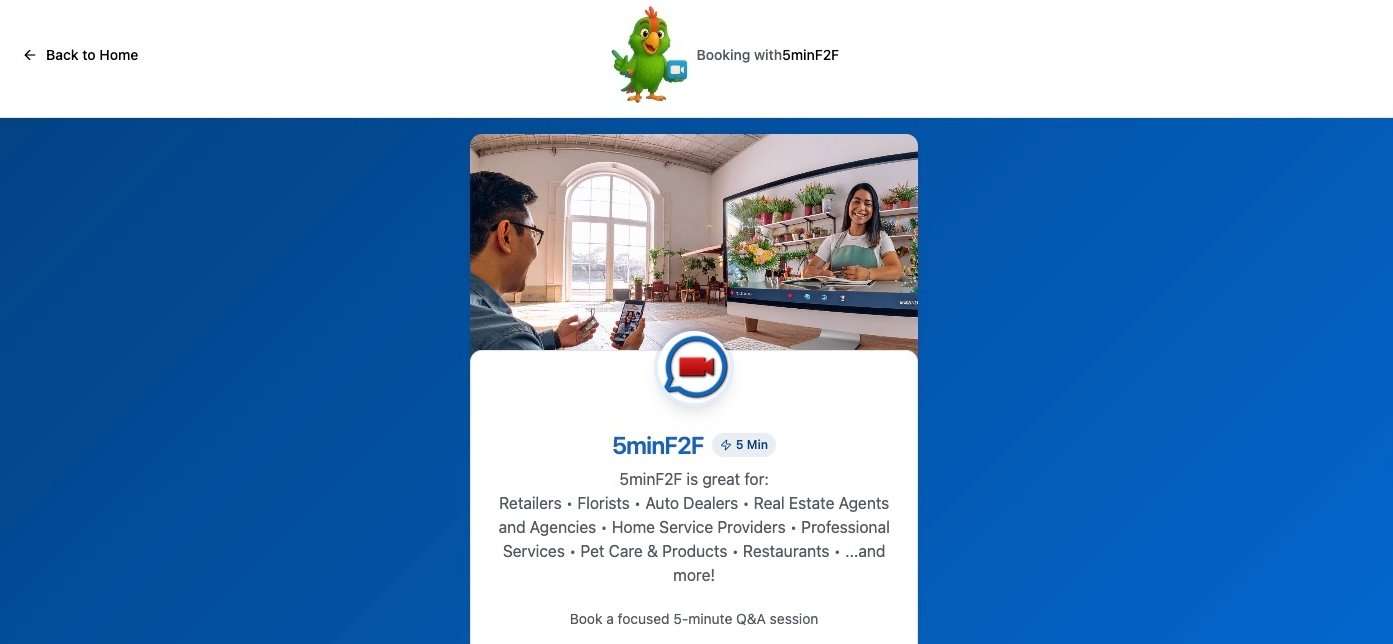
How Customers Book Sessions
Understanding the customer booking experience helps you optimize your setup and provide better service. This guide walks through what customers see and do when booking with you.
The Booking Process
Step 1: Accessing Your Booking Page
Customers reach your booking page by:
- Clicking your shared booking link (
5minf2f.com/book/your-business) - Clicking your embedded website widget
- Following a link from your email signature or social media
Step 2: Viewing Your Profile
Customers see:
- Your business name and logo
- Your professional bio
- Your hero image
- Session description and details
- Customer tips and preparation information
- Any promotional sections you’ve added
Step 3: Selecting Date and Time
The booking calendar displays:
- Current month with available dates
- Dates with availability highlighted
- Unavailable dates grayed out
- Customer’s local time zone
When customers click a date:
- Available time slots appear
- Slots shown in their time zone
- Duration clearly displayed
- They select their preferred time
Step 4: Providing Information
Customers enter:
- Full name
- Email address (required for confirmation)
- Phone number (optional)
- Optional message or questions
Step 5: Confirming the Booking
After clicking “Book Session”:
- System validates availability
- Booking is confirmed immediately
- Confirmation page displays
- Confirmation email sent to customer
- You receive booking notification
Confirmation Details
The confirmation page shows:
- Booking success message
- Scheduled date and time
- Your business name and contact info
- Video call link (if applicable)
- Calendar add options
- What to expect next
Email Notifications
Customer Receives: |
You Receive: |
|---|---|
|
|
Instant Call Requests
|
For urgent needs, customers can request instant calls: |
Your Response Options: |
|---|---|
|
|
Mobile Experience
The booking system is fully mobile-responsive:
- Easy navigation on smartphones
- Touch-friendly calendar interface
- Simple form inputs
- Quick booking process
- Mobile confirmation emails
Cancellations and Changes
If customers need to cancel or reschedule:
- They should contact you directly via the email/phone provided
- You can cancel on their behalf from your dashboard
- They can book a new time if rescheduling
Optimizing Customer Experience
Help customers have a smooth booking experience:
- Clear Description – Explain what happens in sessions
- Set Expectations – Preparation requirements, duration, format
- Professional Images – Quality photos build trust
- Detailed Bio – Help customers know who you are
- Helpful Tips – Guide customers on preparation
- Prompt Responses – Reply to messages quickly
- Consistent Availability – Maintain regular schedule
Common Customer Questions
“Do I need an account?”
No, customers can book without creating an account. They just need to provide their email for confirmation.
“What if I can’t find a good time?”
Customers can try the instant call feature for immediate availability or contact you directly to discuss scheduling.
“How do I join the video call?”
The video call link is provided in the confirmation email and requires no software installation – just click and join.
“Can I reschedule?”
Customers should contact you directly to discuss rescheduling options.